Configure a Lightweight Directory Access Protocol (LDAP) authentication
In this topic, you learn how to set up authentication via LDAP and how to configure it in your cockpit. You must perform multiple tasks to enable the connection.
Procedure
-
In the Cockpit, go to Settings, and click System Settings.
-
Navigate to the Authentication tab and click Edit.
-
Click Add, and select LDAP.
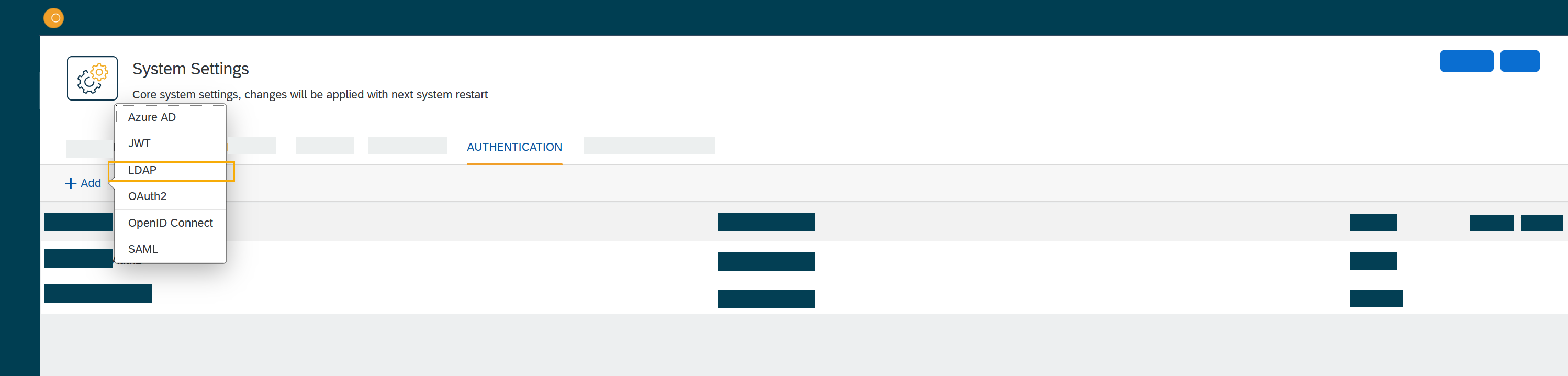
Result: The Authentication dialog opens.
-
In LDAP, fill in or check the following fields:
-
Enter a Name for the authentication.
-
Check Active to activate this authentication method.
-
Check Show on login page to display the authentication method on the login page.
-
Enter a Description.
-
Enter a Path to post login data. (Not relevant when login screen is used but must be set to something). For example: "If myldap then full is
http://planet9server/user/logon/ldap/myldap
-
In Url, enter the URI to the LDAP server.
-
In Bind DN,
-
In Bind Credentials.
-
In Search Base,
-
In Filter for user login, tba
-
In Filter for groups on user login, tba
-
In Filter Group, enter filters for groups and a unique identifier to define who has access to the DXP - Open Edition.
-
In Group Mapping, enter a name and a description for the group that you defined before.
-
In Auto Assignment, assign roles and the departments from the DXP - Open Edition.
-
Click OK.
-
In System Settings, click Restart to activate LDAP authentication.