Add npm modules
In this topic, you learn how to add npm modules to your DXP - Open Edition. There are two ways to add new npm modules:
-
Browse for npm modules on the web.
-
Import a module from your system.
Procedure
-
In the Cockpit, go to Development and click npm Modules.
Result: A table with all npm modules that are installed appears.
-
Click Add.
Result: The Search npm Module dialog opens.
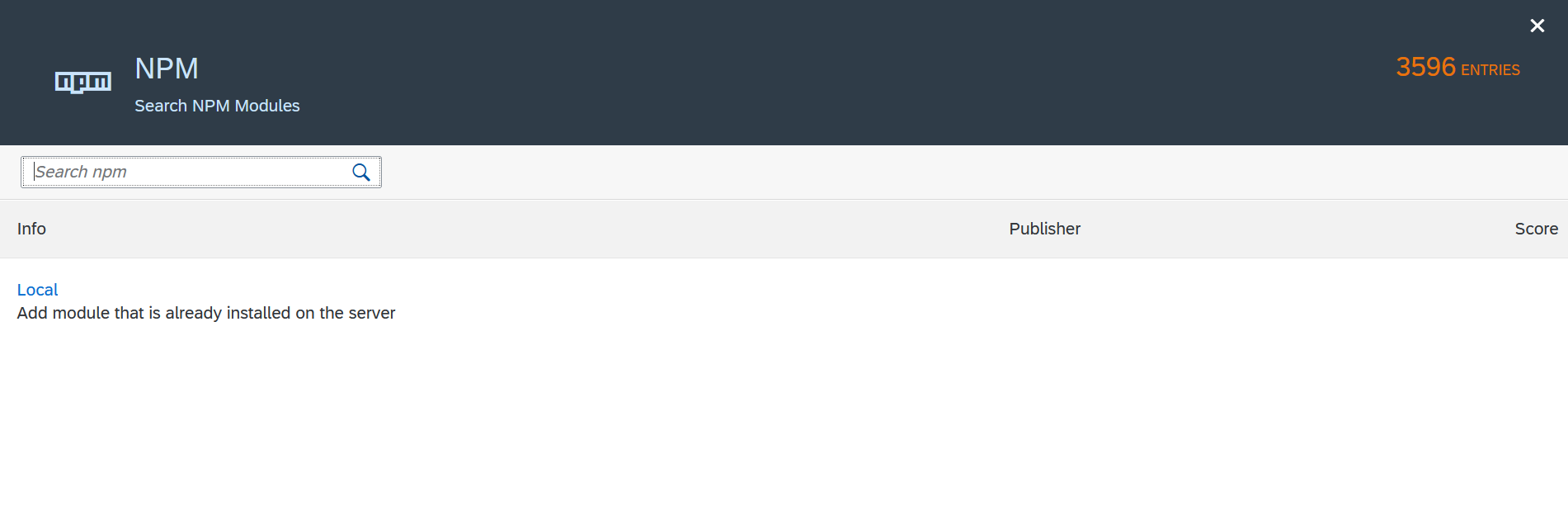
Add a new npm module from your local system
-
Click Local to search for npm modules already existing on the server.
Result: The NPM Modules window opens. You start in the General tab.
-
Enter the Name of the module.
-
Enter the Description, Version Number, and the local Path of the module.
-
Click Save.
Add a new npm module from a remote server
-
In the search field, enter the name of the module and press Enter. Result: A list with corresponding npm modules appear.
-
Click the module you want to add to your instance. Result: A new dialog appear.
-
Select the version of the module and confirm with Select.
Result: The module is installed to your instance of DXP - Open Edition.