Configure an application
In this step, you set up an application and make general settings, such as choosing a name, theme, and language.
|
Save your new application any time in the process and return to it later. To continue building your application, open it in the App Designer and click Toggle to edit mode on the shell bar. 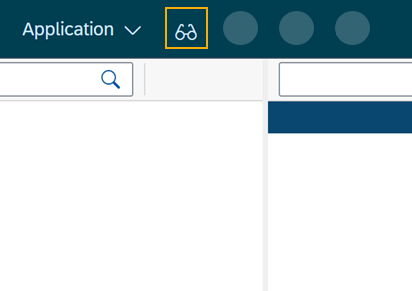
|
Procedure
-
In the Cockpit, go to Development and click App Designer.
-
In the App Designer, open the Application drop-down menu and click Create.
-
In the New App window, enter a Name for your application.
-
In Type, select Application and click Save.
Result: You see the main designer environment, now with an empty HTML document. Here, you perform front-end coding.
-
On the side menu, click the Settings icon.
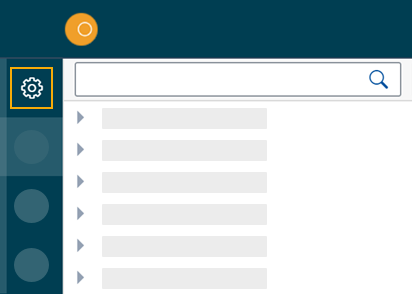
Result: The Application Settings window opens.
-
In General, enter a Description for your application and a Title to use as the name of the browser tab you will run the application in.
-
In OpenUI5, select an Open UI5 Version, Theme, and Language for your application.
The preselected Belize theme gives you the most popular look and feel. -
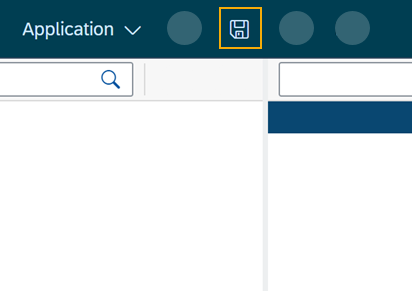
On the top menu, click Save.
| You create your new application in the App Designer. To learn more about the panes and functionalities of the App Designer, go to App Designer interface at a glance. |